
Running & scheduling
The Settings → Jobs admin page — Run now, Cancel, and the interval-to-cron schedule editor, plus which jobs are editable versus manual-only.
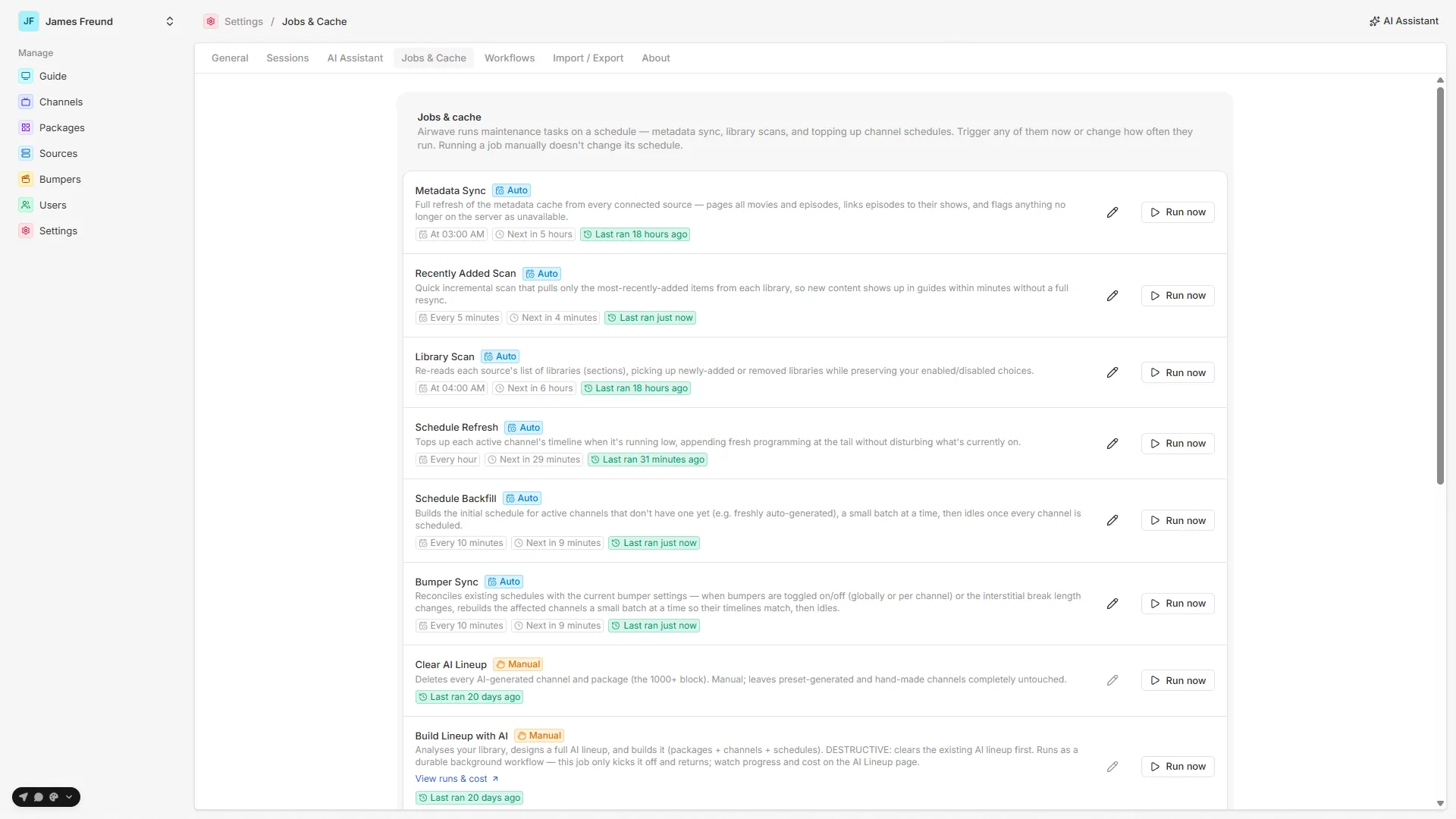
The admin UI lives at Settings → Jobs (apps/web/src/routes/_auth/settings/jobs.tsx). It renders
one row per job from jobs.list and polls it every 5 s — dropping to 1.5 s while any job is
running, so progress bars stay live.
Reading a row
Each row shows the job's name and one-line description plus:
- an Auto / Manual badge — Manual is
interval === "fixed"; - a running spinner while it's in flight, or a last run failed note when
lastStatusis"failed"; - for auto jobs, the human-readable cadence (via
cronstrue) and the Next run time; - a Last ran badge with the last finish time, when there is one;
- for a dispatcher job with a
detailHref(the AI build), a View runs & cost link — its real status lives in the workflow tables, not here.
Manual jobs show no cadence or next-run (they never auto-fire) — just the last run, if any.
Controls
All three map to the tRPC router (packages/api/src/routers/jobs.ts), every procedure adminProcedure:
| Control | Shown when | tRPC call | Effect |
|---|---|---|---|
| Run now | job not running | jobs.run({ id }) → runJob | Fire-and-forget; the mutation returns immediately and status is polled via list. Running a job manually never changes its schedule. |
| Cancel | job running | jobs.cancel({ id }) → cancelJob | Aborts the run's signal (cooperative — see lifecycle). |
| Edit (pencil) | always; disabled for manual jobs | jobs.setSchedule({ id, schedule }) → setJobSchedule | Opens the frequency modal; saves a new cron. Disabled with a tooltip for manual jobs, which have no schedule. |
Editing a schedule
The pencil opens a "Modify <job>" modal — an every N units picker, not a raw-cron field. The
options offered depend on the job's interval type:
interval | Choices offered |
|---|---|
seconds | 30, 45, 60 |
minutes | 5, 10, 15, 20, 30, 60 |
hours | 1, 2, 3, 4, 6, 8, 12, 24 |
days | 1, 2, 3, 7, 14, 30 |
Your choice is turned into a 6-field, seconds-first cron by buildCron(interval, value) — for example
minutes: 10 becomes 0 */10 * * * *, and days: 2 becomes 0 0 1 */2 * *. The modal previews the
result in plain English (via cronstrue) before you save.
On save, setJobSchedule validates by handing the cron to node-schedule's rescheduleJob, which
returns null on an invalid expression — in which case the call returns false and nothing is
persisted. On success it updates the in-memory cronSchedule and the Job row, so the new cadence
survives restarts. Manual jobs (job: null) always return false — there is no schedule to change.
The modal only offers interval presets, never an arbitrary cron string. A cadence outside these presets (a specific clock time, a weekday) has to be set as the job's
defaultCronin code, or edited directly in theJobtable.
Triggering jobs from elsewhere
Beyond this page, some jobs are fired programmatically as fire-and-forget from where their work matters, so an effect doesn't wait for the next cron tick:
- a source page's Sync metadata button runs
metadata-sync; - the Channels page runs
lineup-generate(Auto-generate) andai-lineup-build; - saving a channel's bumper mode, or changing global bumper settings, kicks
schedule-bumper-syncimmediately (void runJob("schedule-bumper-sync")in the channels and bumpers routers).
In every case the self-overlap guard still applies — if the job is already running, the extra trigger is a no-op.
A run's lifecycle
How a single background-job run works internally — the LiveJob registry, the abort signal, progress reporting, and best-effort DB bookkeeping.
Durable workflows
How Airwave runs its long-lived, crash-resilient jobs — the AI lineup builder and the lineup importer — on the Workflow SDK, against its own Postgres.