Desktop app
Run the whole Airwave server on your own Windows, macOS, or Linux machine with a one-click installer: no Docker, no NAS. Embedded Postgres, a tray app, and the browser as the UI.
Not everyone has a NAS. If you run Plex on your main machine, the desktop app gives you the entire Airwave server — API, admin panel, the TV web player, and its database — as a single one-click install that lives in your system tray, right next to Plex. No Docker, no compose file, nothing to configure to get started.
It's the same server as the Docker deploy with full feature parity (including the durable AI-lineup workflow engine) — it just ships embedded Postgres instead of a container, and it manages everything for you. The browser is still the UI: the tray opens the admin and the TV player in your default browser; TVs on your network connect to this machine.
Prefer Docker / a NAS?
If you already run a NAS or a Linux box with docker compose, the container deploy is the way.
Configuration reference
The desktop app's advanced options map 1:1 to the self-host env vars documented here.
Docker or desktop?
| Desktop app | Docker | |
|---|---|---|
| Best for | Plex on your everyday PC/Mac | A NAS, mini-PC, or always-on Linux box |
| Setup | Run an installer, click through onboarding | Compose file + .env |
| Database | Embedded Postgres (managed for you) | A Postgres container you run |
| Feature parity | Full (workflows included) | Full |
| Always-on | Runs while your machine is on (launch-at-login) | Runs 24/7 on the host |
Download
Grab the installer for your platform from the downloads page:
- Windows —
Airwave-Setup.exe(x64) - macOS — Apple Silicon (arm64) and Intel (x64)
- Linux — x64 and arm64
The installer is small (~70 MB). The ~430 MB of TV capability-probe clips are downloaded on first run, not bundled (see the next step).
Install & first run
Run the installer. Airwave lands in your system tray and opens a short onboarding window:
- Create your admin account — the email + password you'll sign in to the panel with. (Public sign-up is
off; this is the owner account, same as the Docker
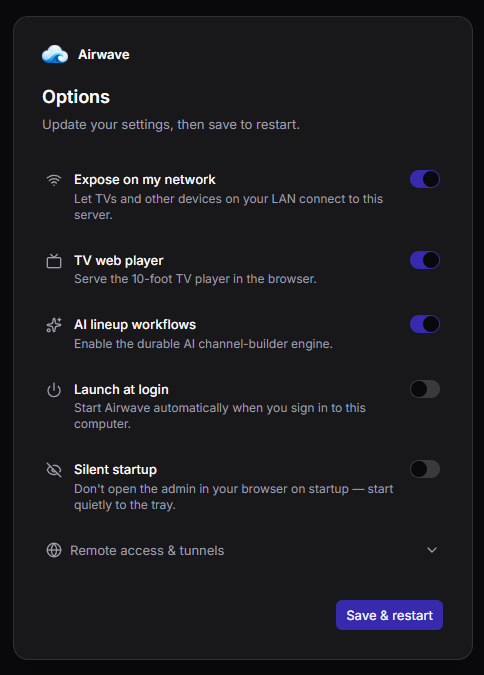
ADMIN_EMAIL/ADMIN_PASSWORDseed.) - Pick your options — Expose on my network (let TVs connect, covered in the next step), the TV web player, and AI lineup workflows. All changeable later.
- Provisioning — Airwave starts embedded Postgres, applies migrations, bootstraps the workflow schema, downloads the capability media (you'll see a live progress bar), and starts the server. First run takes a minute or two; later launches are quick.
- Done — it opens the admin panel in your browser. From here it's the same as any deploy: connect a source, build channels, add viewers.
If you close the onboarding window before finishing, reopen it from the tray — until setup is complete it shows "Set up Airwave" (and Open Admin / Open TV player stay disabled).
The tray & reaching Airwave
The tray menu is your control surface: Open Admin, Open TV player, the server address for TVs, Settings, and Quit.
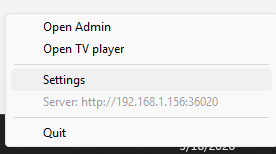
- On this machine, the admin opens at
localhost— nothing to configure. - TVs and other devices on your LAN connect to this machine's LAN IP (e.g.
http://192.168.1.50:36020). Turn on Expose on my network (onboarding or Settings) and the tray shows the address to point your TV at. This is the desktop equivalent of settingSERVER_PUBLIC_URL/WEB_PUBLIC_URLin Docker. - Remote access / a domain — Settings has an advanced Remote access & tunnels section
(server address, admin address, extra allowed origins) that maps directly to the self-host
SERVER_PUBLIC_URL/WEB_PUBLIC_URL/EXTRA_CORS_ORIGINS. Point it at a Cloudflare tunnel or reverse proxy for HTTPS.
Ports auto-resolve to free ones (defaults: server 36020, admin 36021, TV player 36022) so nothing
clashes with an existing service.
Where your data lives
Everything the app owns — config, the Postgres data directory, the capability media, and logs — lives in one per-OS user-data folder:
| OS | Folder |
|---|---|
| Windows | %APPDATA%\Airwave |
| macOS | ~/Library/Application Support/Airwave |
| Linux | ~/.config/Airwave |
To reset to a clean first-run, quit the app (so Postgres releases the data dir) and delete that folder.
desktop.log in there is the first place to look if something misbehaves.
Updating
Download the newer installer from the downloads page and run it over the top. Your data folder is untouched, so your channels, sources, and admin account carry over. (Built-in auto-update is planned.)
Notes
- macOS builds are signed and notarized (Apple Silicon and Intel), so they open without a Gatekeeper warning.
- The capability media downloads on first run (~430 MB, from a public assets release). It's non-blocking — the server works immediately; the TV codec-probe clips just appear once the download finishes. It's cached, so it only happens once.
- Workflows work here too — unlike a bare container without the bootstrap, the desktop app sets up the workflow schema automatically, so Channel Import and AI lineups are available.
Troubleshooting
The database won't start on Windows
If setup fails at "Starting the database", or you see a 0xC0000005 crash on first run, the embedded database
is missing the Microsoft Visual C++ Runtime. The installer now bundles it, but on a very old Windows build
that's still missing it, install the runtime once and relaunch:
aka.ms/vs/17/release/vc_redist.x64.exe. This is not an
antivirus issue, despite how the crash reads.
Source map
| Concern | File |
|---|---|
| Tray supervisor (embedded PG, migrate, server, tv-web) | apps/desktop/src/bun/index.ts |
| Onboarding / settings UI | apps/desktop-setup |
| Bundle config (per-OS build.copy, embedded PG) | apps/desktop/electrobun.config.ts |
Release matrix (Win / macOS / Linux installers on a v* tag) | .github/workflows/desktop-release.yml |
See also: Docker quick start · Configuration · Quick Start · Sources